
welcome to your illahee, virtually!
ACCOUNTS:
Every camper has her own personal account that has been established for her to access myIllahee . You received the account information by email. If you forgot either, you can click on the Forgot Username or Forgot Password links on the Login screen. We do not create separate accounts for friends or family. If you would like for them to have access, you can share your account information. Realize that anyone with your account information will be able to save images to your Saved Favorites. If all else fails, you can email us for assistance. We do not have access to your password, but we can reset it. You may change your password to one you will remember, but if you are sharing your information, you may want to choose one that is not sensitive.
GALLERIES AND FAVORITES:
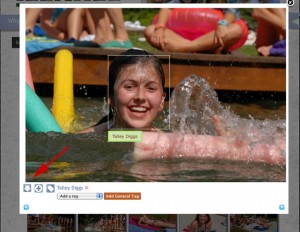
When you click on the photo album, you will be taken to our Galleries Page, where you will click on the day’s gallery that you want to see. A page of thumbnails will load with 25 per page. Click on an individual picture to expand it, and then use your keyboard’s right and left arrows to advance or go back. You may also click on the icons to navigate. Each expanded photo will have two or three icons at the bottom left: everyone will have a + icon and a tag icon. When you see a picture you would like to save for future viewing (your camper), click on the plus + icon. This will save the photo to your saved favorites, what we call the lightbox. If you decide later that you want to remove it, click on the minus – button. Photos are loaded at various times during the day. If you are an early to bed person, be sure and check the previous day again in the morning as sometimes we post quite late.
RESOLUTION AND PRINTING:
Both the thumbnail and the expanded photos are fairly low resolution and will not look great if copied from the webpage and printed. Those who purchased the high resolution versions will have a down arrow icon on each expanded photo to the left of the + plus icon and the tag icon. Click on this arrow and choose the location on your computer to download the file to. From here, you can print on your own printer or take the file(s) to Wal-Mart, CVS, or upload to Flickr or Shutterfly for stunning results. You can download any or all of the photos from the year. Email us if you would like for us to activate this on your account.
TAGGING:
You can tag your camper so that everyone will know who she is (and so that you can sort and return all pictures where she was tagged). To do this, find a picture that she is in, and hold down your mouse button to drag a square across her face. Make it tight if there are other campers in the photo so there is room for their tag too. When you release the mouse, a drop-down box will pop up. Simply choose her name from the list of campers and staff there. If you know other campers, feel free to tag them too. When you are scrolling through pictures, if you want the tags to show up, leave the cursor of your mouse in the photo area. If the tags bug you, leave your cursor out of the picture and they will disappear. There are also general tags that we would love for you to help out with. If there is a tennis picture, tag with the tennis tag. Under the myIllahee menu, choose Taglist, choose whatever pictures you would like to see, and choose that tag. Pretty neat, huh?